Clearspace · UX and UI design
Designing a task app for brains that get overwhelmed
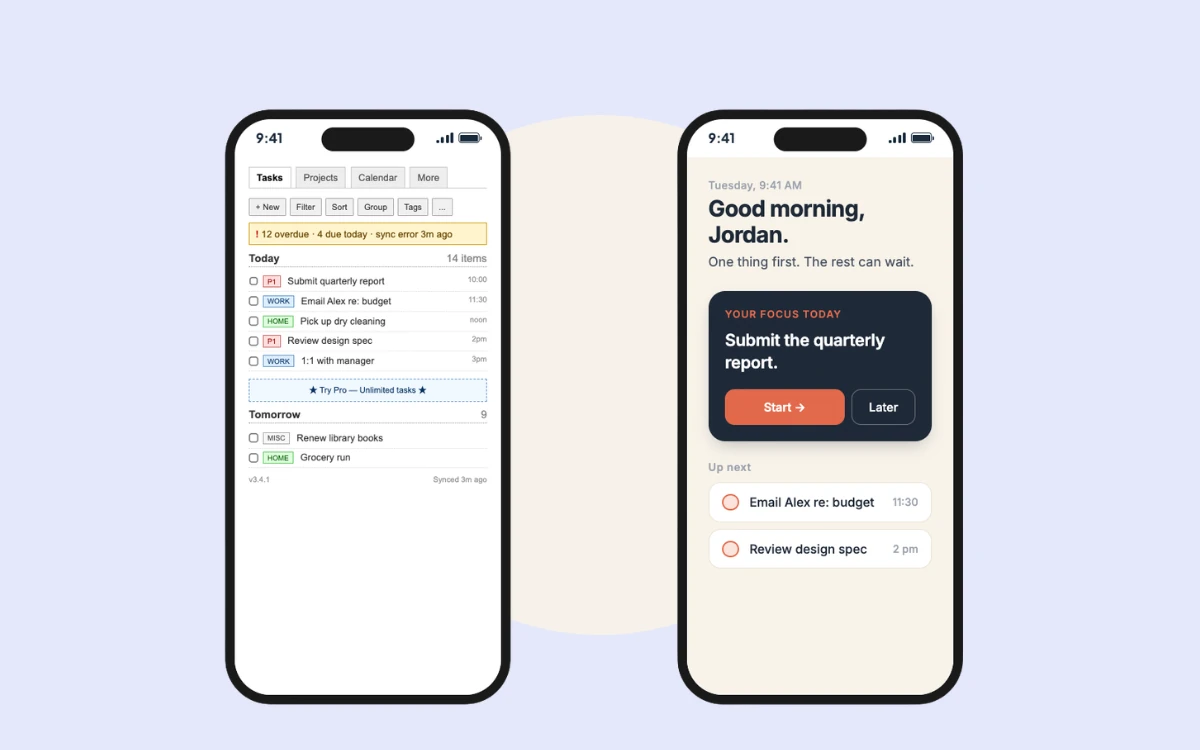
When an interface is cluttered or hard to follow, even a simple task can start to feel like too much. What would a task app look like if it was designed for brains that get overwhelmed?
- Role
- UX designer, UX researcher
- Team
- Solo project
- Tools
- Figma
- Timeline
- September–November 2025
TL;DR
- A task app concept for people with ADHD, dyslexia or cognitive overload, for whom cluttered screens turn simple tasks into stress.
- Four principles (keep it simple, add structure, make it easy to read, guide attention) shaped the type, colour and components.
- I put it to work by turning a standard sign-up form into three short, guided steps with clear labels and errors that don't rely on red.
The problem
I know how frustrating it is when an app doesn’t account for the way you think or focus. When a screen is cluttered, even a simple task starts to feel like too much.
For people with ADHD, dyslexia or cognitive overload, dense layouts, unclear hierarchy and too many choices add stress. Passing a contrast checker doesn’t fix that, so I wanted to design for how a screen feels to use, not just whether it meets the standard.
Understanding cognitive overload
What I took from the reading:
- Clutter, dense screens and inconsistent navigation make information harder to process.
- Most products are still designed around an “average” user, and neurodivergent people often process information differently.
- Clear hierarchy, simpler layouts and shorter sections reduce the load.
- Constant choices, notifications and interruptions wear people down over time. That’s decision fatigue.
Sources: Earth Coaching, UXPA Magazine, “Cognitive Load Optimization in User Interface Design for Info Services”, and “Decision Fatigue in the Digital Era”.
Design principles
- Keep it simple. No features or visuals just because I could. One task at a time.
- Add structure. Things stay in the same place, so you never stop to figure out where you are or what’s next.
- Make it easy to read. Spacing, hierarchy and type that don’t tire you out.
- Guide attention, don’t compete for it. One thing on the screen should be clearly first.
Typography
Type ended up mattering more than I expected. Some fonts I tried got tiring after a few paragraphs, so I chose for open shapes and lots of space.





- Body, Atkinson Hyperlegible: built by the Braille Institute so similar letters (like I, l and 1) don’t get mixed up. It stayed easy to read in the longer text.
- Headings, Plus Jakarta Sans: clean, and light enough that headings add structure without shouting.
- Line length, 55–75 characters: longer lines were harder to keep my place in.
- Line height, 1.7× for body: more room between lines, so paragraphs don’t look like a block.
- Letter spacing, +0.01–0.04em: a little extra so letters don’t run together.
Colour palette
I wanted the palette to be calm without being washed out. Nothing neon, and only one colour (blue) means “do this”.
- Background #EDF1F7
- Text primary #1A2B3C
- Text secondary #3D5468
- Blue #0074A5
- Sage #0B764D
- Amber #BE7C1C
- Border #D3DCE8
- Background #EDF1F7: off-white, because pure white got harsh after a while.
- Text #1A2B3C and #3D5468: a dark navy instead of black for main text, and a lighter one for labels and hints.
- Blue #0074A5: buttons and main actions only.
- Sage #0B764D: success and confirmation. Calmer than a bright green.
- Amber #BE7C1C: “check this”. It gets noticed without the panic of red.
- Border #D3DCE8: light enough to separate things without adding lines everywhere.
UI components
Buttons say exactly what they do. There’s one main action per screen, and anything you can’t undo is labelled plainly.


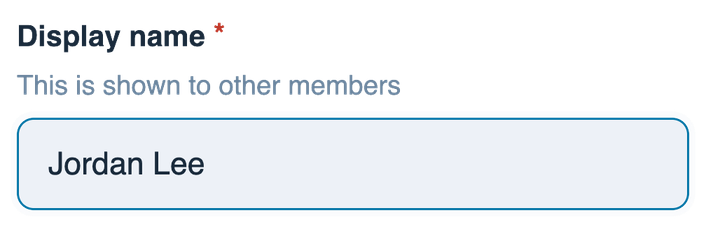
Labels sit above the field and stay there while you type, so you never lose track of what a field was asking. Progress bars say which step you’re on and how many are left.
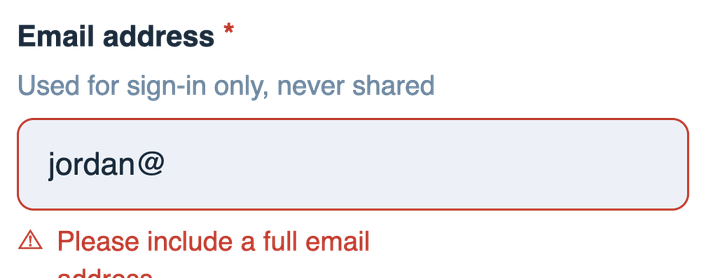


Messages never rely on colour alone. Each one says what happened and what to do next.


Applied example
To test the system on something real, I took a standard create-account form and redesigned it. It asks for the same information. Only the experience changes.
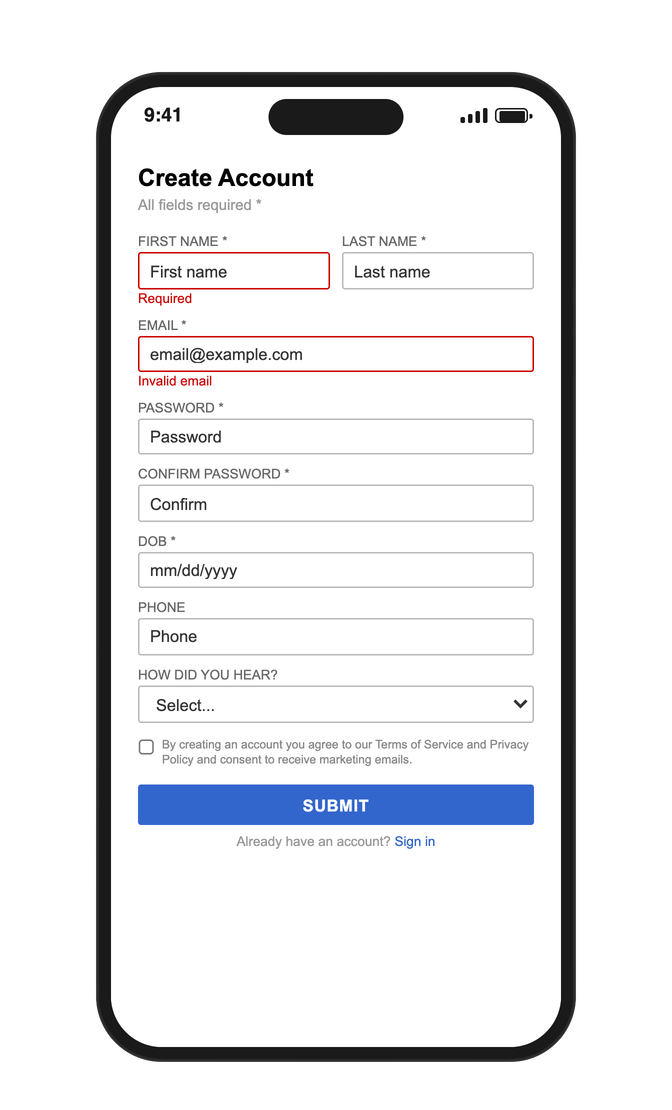
What wasn’t working before:
- Pure white background with very strong contrast, which is uncomfortable for some people to read on.
- Vague labels, so you stop to work out what each field wants.
- Every field at once, with no clear place to start.
- Errors shown only in red, which doesn’t work for people with colour vision differences, and nothing says how to fix them.
- Tiny consent text at the very end, easy to skip.
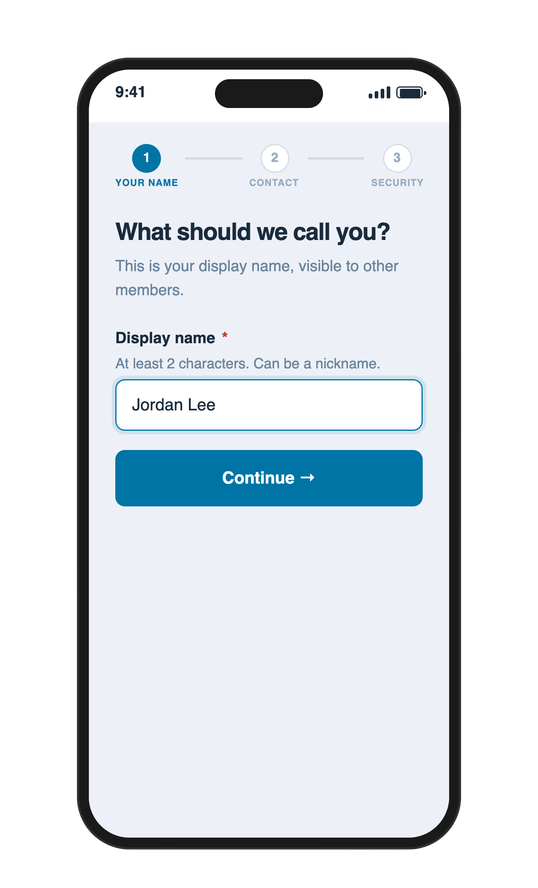
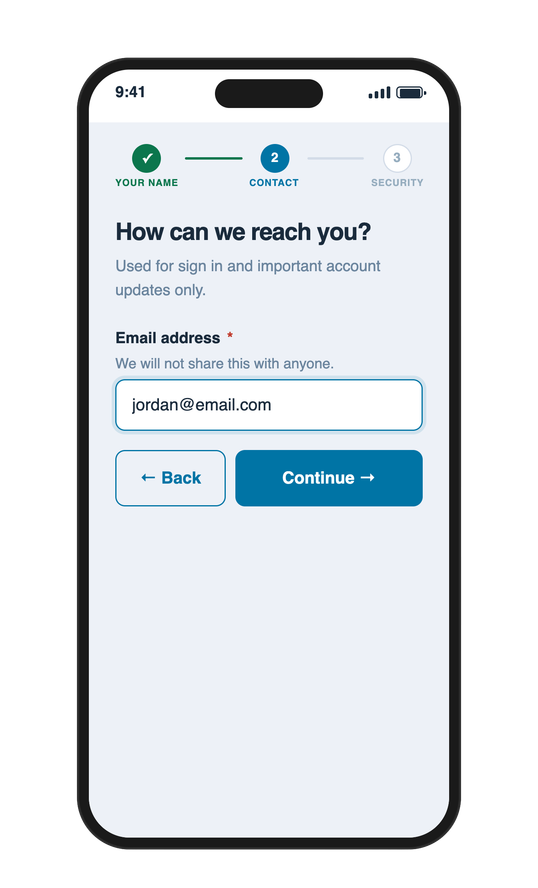
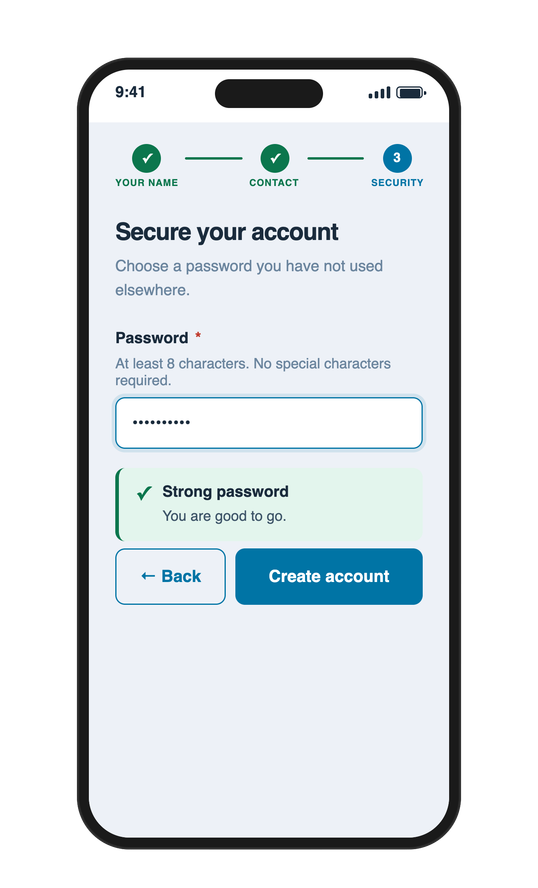
The new version splits it into three steps with one question each, written the way you’d ask a person (“What should we call you?”). Each step has helper text and a progress bar, and the password field tells you it’s strong enough before you hit the button.